Looking for a project tracking solution that is simple, easy and free? Learn how to effectively use a project tracking sheet and download a free project tracking template.
Project managers use a range of tools to keep themselves and their teams updated with the progress of the project. While in most cases these project tracking solutions are highly specialized and costly, there are simpler tools too – like this sample project tracking sheet (download here) . After downloading the sheet you can read through the instructions to learn the best way to use it.
Using the Sample Project Tracking Sheet
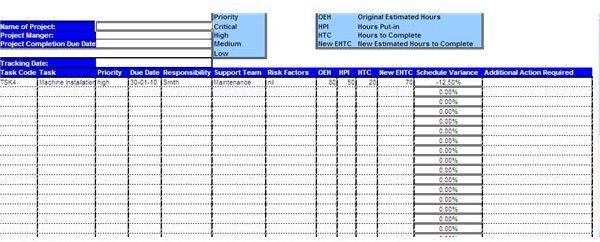
On the top left side of the project tracking sheet are a few fields where some basic details about the project can be entered. And on the top right is a list of the acronyms used in the template.
The columns contained in the tracking sheet can be filled up as described here:
Task Code: Each of the tasks in the project can be assigned a unique code for reference purpose.
Task: A brief description of the task and it’s purpose.
Priority: Each task can be assigned a priority on the basis of its relative importance with regards to all the other tasks. In the sample we have four types of priorities – critical priority, high priority, medium priority and low priority. If needed, the user can develop a customized priority scale as per the specific requirements of the project.
Due Date: The date by which the task must be completed, so as to maintain the project on-schedule .
Responsibility: The name of the person who is responsible for getting the task completed as per specification and within the scheduled time.
Support Team: Any inside or outside team that will support the accomplishment of the task.
Risk Factors: Any critical risk factors that can cause problems in the execution of the task.
Original Estimated Hours: The original estimate of the number of hours that will be required for completing the task successfully. This estimate should be available in the detailed project plan.
Hours Put-In: The number of hours that have already been spent on the execution of the task.
Hours to Complete: An estimate of the additional number of hours that need to be put in for completing the task.
New Estimated Hours to Complete: The user does not need to make any entries in this column, as the sample project tracking sheet will calculate the new estimate based on the hours filled in the earlier columns. The new estimated hours to complete are calculated as the sum of hours put-in and the hours to complete.
Schedule Variance: This field will again be calculated on its own, and it represents how the task is performing against the original schedule. A zero variance means the task is moving as per schedule, a positive variance means the task will take more time than it was originally allocated and a negative variance implies the task is being carried out at a faster pace than the original time allocated for it.
Additional Action Required: This is an optional field and needs to be filled in with remarks for the manager only if the schedule variance is positive and thus the project is behind schedule .
References
- Template and Screenshot by Sidharth Thakur