Few people realize the depth of detail required in order to manage a project. We understand this at Bright Hub, and from our best PM writers comes this titanic assortment of tutorials. Learn what Microsoft’s Project software is all about, and find out just how much easier it can make your life.
What Is Microsoft Project?
Microsoft created its Project software to facilitate processes for people who have to organize events and projects, drive schedules,
allocate human and non-human resources, motivate efficiency, and facilitate collaboration. You can be the most efficient manager in five counties—and that’s undoubtedly how you acquired your responsibilities: But with all the work that crosses your desk, you owe it to yourself to let Project make it easier.
In this series you’ll see reference to Project 2010, Project 2007, and even Project 2003. The biggest difference between them is the introduction of Microsoft’s ribbon format. Otherwise, all three of them have many of the same features, with the latest version just making it easier to find and utilize them.
It’s best to begin a project by listing your tasks. Next, apportion your resources, check out budgetary constraints, align the order of tasks, and figure out a date and duration for each task. But not every project begins that way, and not every person likes to do things the exact same way. With Project, you can begin whichever way suits your style. But first, you’ve got to open it.
Open Your Project Software
The best way to plunge you into the world of Microsoft’s Project software is to have you experience it. You could read every article in this collection—and we hope you do, because each and every one contains valuable information—but the best way to learn Microsoft Project is to open it and begin. One of our favorite Bright hub tutors, Venkatraman (Venkat for short), takes you by the hand to help you set up and perform simple functions with your very first Project project.
By the way, allow yourself to become accustomed to the phrase “Project project”—because once you fall in love with Microsoft’s intuitive, ingenious software you’re going to be saying it a lot.
- Step-by-Step Tutorial on Microsoft Project: Getting Started in Twenty Minutes (Lesson 1)
- Task Insertions, Amendments and Other Features in Microsoft Project (Lesson 2 )
- Getting to Know the Menus and Toolbars in Microsoft Project (Lesson 3)
- More About Toolbars and Some Tips and Tricks in Microsoft Project (Lesson 4)
- Types of Task Relationships in Microsoft Project (Lesson 5)
Introducing the Bells and Whistles
Now that you’ve set up your very first Microsoft Project project, you can refer to it as you read this selection of articles that familiarize you with
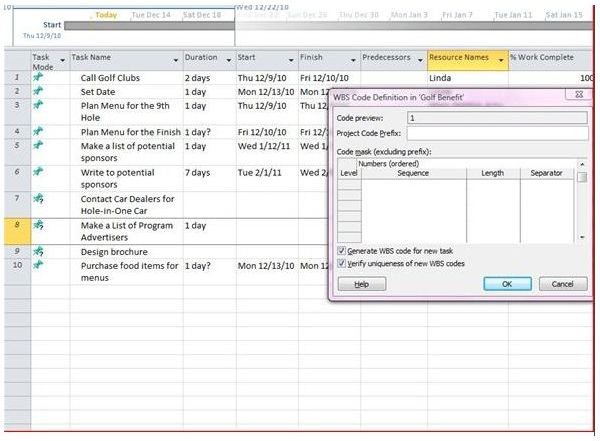
Project’s many features. Learn all about getting started, including download and launch experiences. You will discover the feel of the software as you assign tasks and resources and enter dates or durations. There is also information here about sharing your projects via Project Server or utilizing Project for portfolio management. You will find several examples of different ways to use Project.
Near the end of this section you’ll see a two-part article not only on how to start managing your project but also how to get the most from Project’s built-in Gantt chart. The second-half of the two-part article here talks about Project’s many views.
- Getting Started with Microsoft Project 2010
- Project 2007: How to Set Up a Microsoft Project Plan
- When Do You Need Microsoft Project?
- Examples of Microsoft Project Plans
- Managing Projects with Microsoft Project 2007: A Good Project Management Resource – Part 1
- Managing Projects with Microsoft Project 2007: A Good Project Management Resource – Part 2
Who’s On First?
No, we’re not talking about Abbott and Costello’s famous baseball routine. We’re getting you ready to dive into our personal favorite
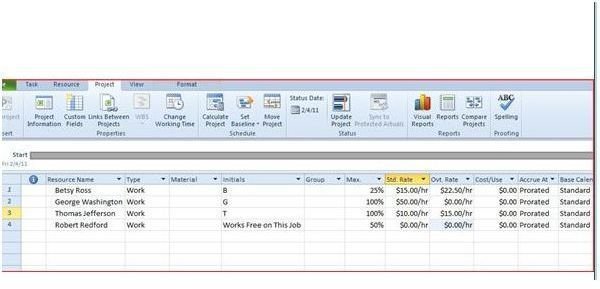
feature of Project, which is the way it manages resources. With Project, you can begin by identifying the tasks and assigning people to do them—or, you can list the names of the people on your team and then assign to each one the tasks that best fit his or her skills.
What we like best is the ability of Project to tell you what other projects your regular people are assigned to as you’re deciding who should do what next. You can also create a resource pool; you enter the names, work schedules, salaries, and other pertinent information about various individuals whom you utilize frequently so that you can consider their availability and their effect, both in time and in money, on the project. Also, Project gives you a snapshot of who is over-utilized and what tasks aren’t assigned to someone. It’s also possible to share your resource pool among multiple project managers.
- Advantages of a Resource Pool in Microsoft Project
- Project 2007: How to Display the Resource Histogram
- Project 2007: Utilize Resource Availability Graphs
- Project 2007: Leveling Resources (Part 1 of 2)
- Project 2007: Leveling Resources (Part 2 of 2)
- Project 2007: How to Display the Resource Histogram
It’s About Time
Yes, it’s all about the minutes, the hours, the days, and so forth. How can Project figure out when Betsy from Marketing has time to work
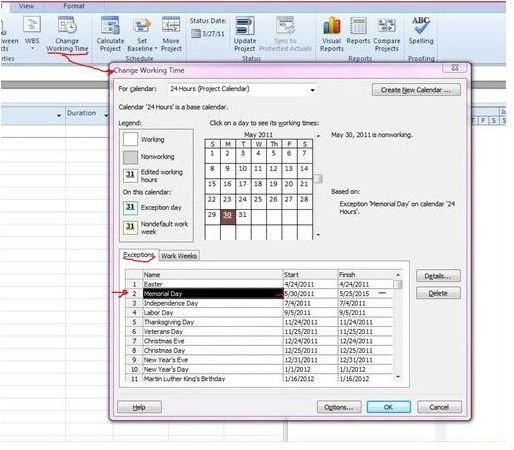
on your fundraiser if it doesn’t know her work schedule? And even more important, does your company follow a typical Monday-through-Friday work week, or are you open half days on every other Saturday? Use the calendar feature to tell Project when the company works and when individuals work, because it’s all about the time.
- Microsoft Project 2010 Calendar View
- How to Customize a Calendar for a Specific Task
- Project 2007: Working Time Exceptions
A Tisket A Tasket - All About Tasks
Keep in mind as you become familiar with Project that the more you work with it, the more features you will discover. Task dependencies
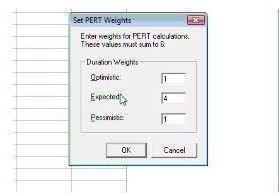
tell Project how to schedule tasks automatically. It’s also vital to monitor the effect that changing one task has on other tasks. You’ll also learn here how to add recurring tasks and how to manage task relationships. Project 2007 offers tools to apply the familiar PERT formulas, while Project 2010 leans toward heavier use of the Network Graph.
- Project 2007: Using Change Highlighting for Task and Schedule Analysis
- Project 2007: Adding Recurring Tasks
- Project 2007: Working with Task Relationships
- Project 2007 and 2010: Estimating Task Durations Using the PERT Formula
- Project 2007: Applying Different PERT Weights
The Path Your Project Takes
At the end of each project, you’ll discover that what sets Project apart from every other software in Microsoft’s office suite is that it lets
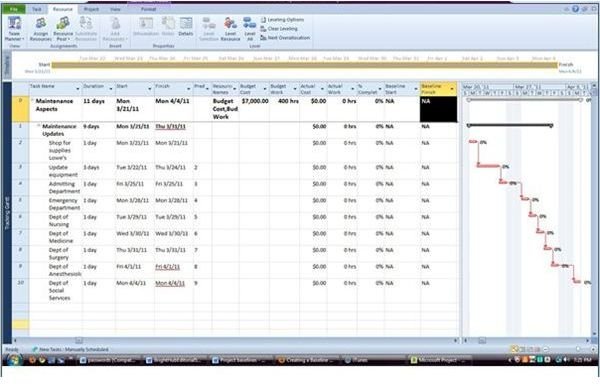
you learn. You will have opportunities to look at how things might have been done differently, so that you can make better decisions for your next project.
These articles will teach you to manage your project’s critical path and take its pulse at intervals using baseline views and milestones.
- Identifying and Viewing the Critical Path in Microsoft Project
- Microsoft Project Baselines: Best Practices for Creating, Changing, and Using
- Project 2007: How to Define a Project Baseline
- How to Calculate Actual Work in Microsoft Project
- Taking Your Project’s Pulse: Microsoft Project’s Natural Checkpoints
- Filling MS Project Milestones
Extra! Extra! Read Even More About It!
As you become more accustomed to the feel of Project, it’s time to explore some of its extra capabilities. You can easily import Excel files into Project. Learn how to put the Gantt chart to best use. You can even insert it into a Word doc when it’s time to present a
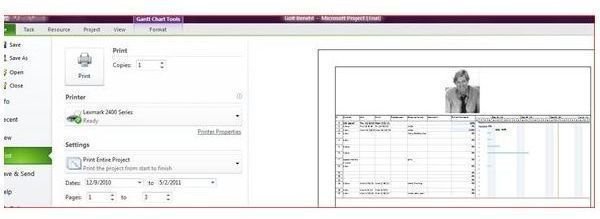
report. Apply a watermark to your Project file, and learn all about using the Notes feature. Learn exactly how to create your budget. Print your project the way you want it to look. And, just in case you haven’t found everything that you need here—because Project is, after all, always revealing itself in new and amazing ways—check out our list of additional tutorials and best books to read.
- How to Import Excel Files into Microsoft Project
- Adding a Watermark to an MS Project Schedule
- How to Add Notes to Microsoft Project 2010
- Project 2007: How to Create a Gantt Chart
- Project 2007: Using the Gantt Chart
- Project 2003: Printing Reports
- Project 2007: Printing Reports
- Creating a Budget in MS Project
- Roundup of Microsoft Project Tutorials
References
Image of Microsoft Project Professional 2010 from Amazon’s website
(All other images are screenshots of Project 2010 taken by writer)