
A visit to Dooster’s website and you’ll find this software is described as an “online project management and collaboration tool”. So, how does Dooster work and is it worth the price? Jean Scheid takes a look in this Dooster review.
Editor’s Note: This article was originally published Mar 28, 2011. Since that time Dooster has updated their product. Check out their website for more complete information.
What Is Dooster?
This web-based project management package comes from the developers at Moneysorter Group in the UK. The makers of Dooster offer up that “it’s so easy your granny could use it”. This project management package includes ways to organize, share documents, track projects and works in conjunction with Google Calendar and Outlook. Dooster’s developers decided no project management collaboration or tracking tool worked just the right way, so enter Dooster. Let’s see if this project management software makes the mark in this Dooster review.
Free Trial of Dooster (4 out of 5)
You can sign up for a 30-day free trial of Dooster quickly and easily by filling out a profile on their site, or by using your Google account. You are assigned a site address: (https://your name.dooster.net), able to choose your country and time zone and can integrate your Google contacts as well as your Google Calendar and Docs if desired.
At this point you can jump right in and create a project or watch three getting started videos; the videos are worth watching instead of jumping right in.
Features of Dooster (3 out of 5)
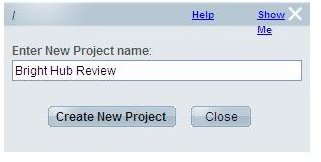
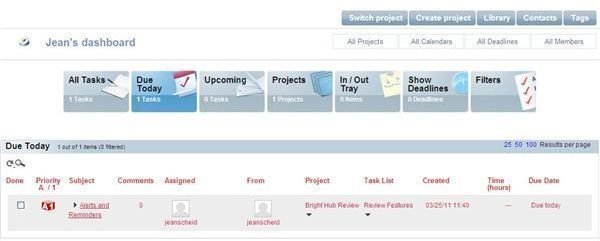
Getting started with Dooster is quick. The screenshots below shows how, once signed in, you first create and name your project. From there you can add tasks to your project and utilize Dooster’s tools to set due dates, priority, share with the team (or select who can view the task), and assign tasks.
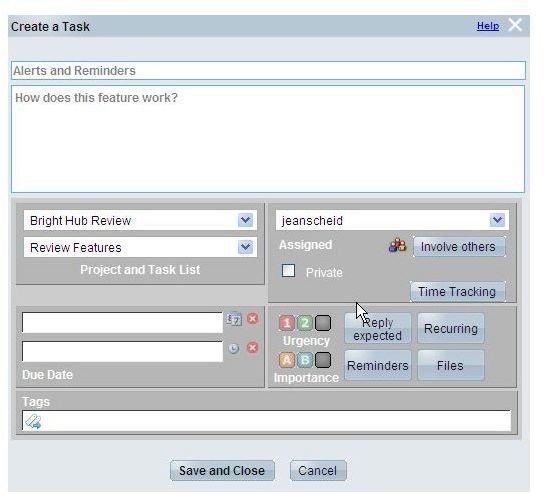
The next screenshot shows our project name: Bright Hub Review; the task list shows “review features,” and the subject tab reveals what features we want to review, “alerts and reminders.”
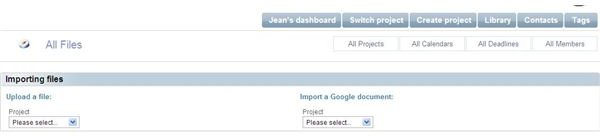
Next, via the contacts tab, select and assign task to those involved in the project, and set permissions on who is allowed to view each individual task. From there, you can upload files (even a Google doc) to share with team members.
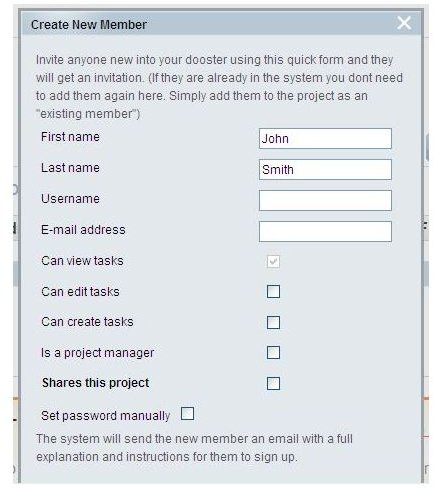
Once you add your team members and assign tasks, everyone involved in the project receives an email and alerts, as assigned. From there your collaboration on the project begins and anyone (based on permissions set), can update a task, add notes or comments, and upload files to the library.
The settings tab on the dashboard allows you to customize your project by adding a logo, text and background colors, opt in or out of alerts, set back up times, sync with Google Calendar and archive or delete a project.
One of the nice features of Dooster is the mind map tool shown below.
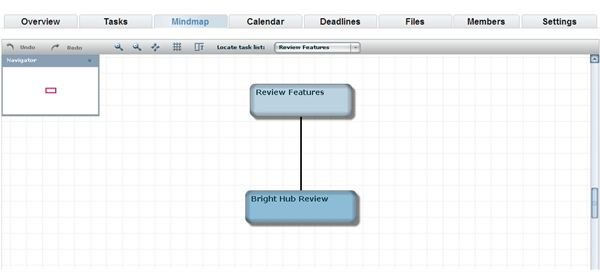
From this Dooster review, I found the tabs easy to navigate, was able to add and assign tasks quickly, although there did seem to be a slight delay when switching from one screen to the next.
Tracking and Collaborating with Dooster (3 out of 5)
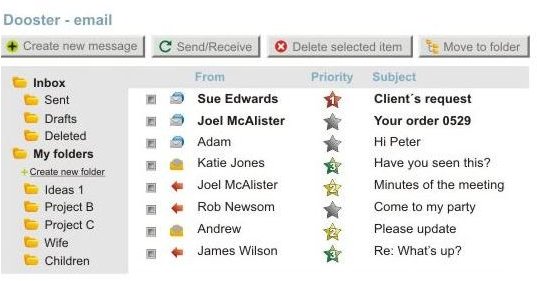
Because Dooster is an online collaboration and project tracking tool , it’s easy for a team working in one location or in many, and it uses Amazon Web Services for its secure data storage source. Project managers can monitor everything from within the Dooster dashboard, however collaborating with the team works a little different.
When a task is assigned to a team member, they are immediately sent an email alert informing them of the task, along with any notes or files you send. Here is where Dooster can be great, or a hindrance for some managers.
For example if you have ten team members, all working on the same task, each is sent an email and any responses create an email thread that is inserted into the task, easily viewable by the project manager. In the free trial version, the threads, in my opinion, seem tedious as team members stay in collaboration mode via the emails—not the dashboard; only two users can view the dashboard within the 30-day trial period—meaning any others just follow the email thread to stay connected to what’s going on. If you purchase Dooster, more collaboration other than the email thread is possible, although Dooster prides itself on not having to login and instead, just following the email threads to stay connected.
Pricing and Plans (3 out of 5)
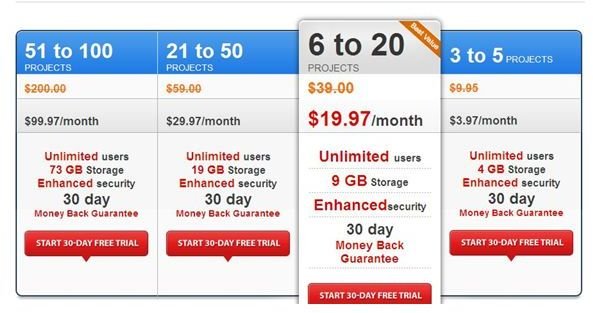
Dooster offers up various pricing plans, all with unlimited users and a 30-day money back guarantee. Plans are project-number based: 3-5, 6-20, 21-50, and 51-100 with monthly prices ranging from $3.97 to $99.97.
Once you choose a plan, and find you need more project space, you can change your plan. However, once the 30-day trial is up, you must either cancel or your credit card will be billed automatically based on the selected plan. If you do decide to cancel, Dooster does allow data retrieval.
For this Dooster review, I utilized the free getting started plan (found on their homepage ), that doesn’t require the entry of a credit card, so if you want to see, feel and touch Dooster, this may be your best bet before purchasing a plan.
Bottom Line (3 out of 5)
I’ve learned from this Dooster review and other project management software reviews here on Bright Hub, that Dooster has an average user interface as far as the learning curve goes, however, the help section covers a lot of topics and offers FAQs to solve most problems or answer questions.
Overall, I would give Dooster an average rating as a project management tracking and collaboration tool, especially since there are so many free software options that have the same capabilities of Dooster.
Dooster is well suited for mid to large sized companies and can be a great global project management tool. The bottom line with Dooster—if the pricing is in your budget, it will work well for you—if not, skip it and use Basecamp or SantexQ ; both are free.
References
All product information and screenshots courtesy of Dooster - https://www.dooster.net
This article has been placed in our archives.