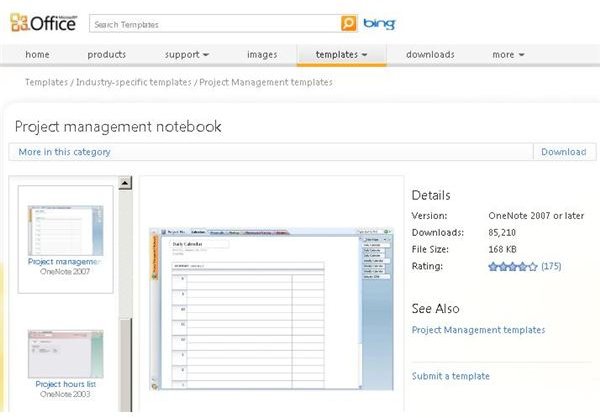
Microsoft OneNote is a powerful organizational tool because notes, computer files of almost any type can be collected in a way that fits almost any situation, including project management. There are a lot of ways to facilitate MS OneNote project management, some of which are discussed here.
OneNote Overview
Microsoft OneNote makes it easy to categorize projects by maintaining separate “notebooks” for every aspect of your job and your life. Because OneNote is incredibly flexible and powerful, it has received several positive reviews for not only its basic features but also for providing an outstanding platform for project management .
Inside every notebook, users can create pages and insert related files, email and voice mail messages, notes, phone and billing records, and more.
To get started with MS OneNote project management, we will look at both a notebook and a page template and then talk about how to share OneNote notebooks over the LAN or the Web.
Microsoft OneNote Project Management Notebook
To facilitate MS OneNote project management, Microsoft has a template available for download from the Microsoft Office website . When
installed, this template gives project managers and team members a head start by configuring sections and pages for tracking time, creating schedules , recording phone calls, and planning reviews. With this template, all the flexibility and power of OneNote is available in configuration designed especially for managing a project.
When downloading this template using Microsoft Internet Explorer, the template will automatically install via an Active X control and then open into a new OneNote notebook. Of course, the notebook can be modified and adapted to meet the demands of a particular project or work environment and then saved as a local template that is always ready for a new project.
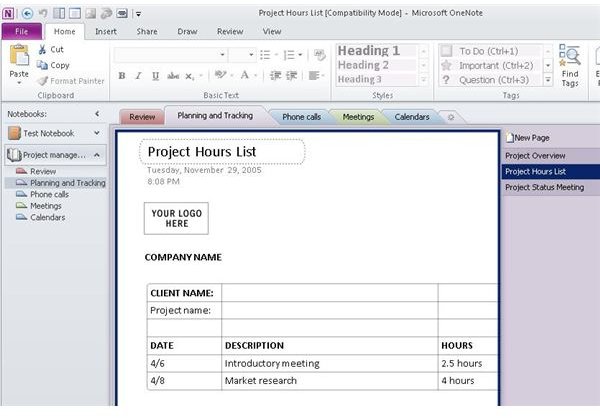
In the project management notebook, five notebook sections are available in the left column as well as in tabs displayed at the top. These sections are Review, Planning and Tracking, Phone Calls, Meetings, and Calendars.
The pages inside each notebook section are displayed in the column to the right of the OneNote page. Of course, new pages and sections can be added to the project notebook as needed.
Project Post-Mortem Stationery
Another tool for MS OneNote project management is the Project Post Mortem stationery template that is available at the Microsoft Office website as a free download. This file provides a solid foundation for evaluating completed projects and fits in nicely with the Project Management Notebook template.
This file downloads the same way as the notebook template does, but when it installs, it becomes a page in a notebook and is available by selecting it as the default template for a new page using the combo box at the bottom of OneNote’s right hand column.
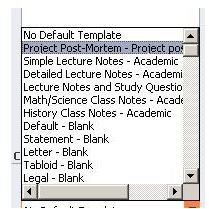
If the “Templates” column is not visible, click the downward pointing arrow to the right of “New Page” and then select “Page Templates” from the context menu.
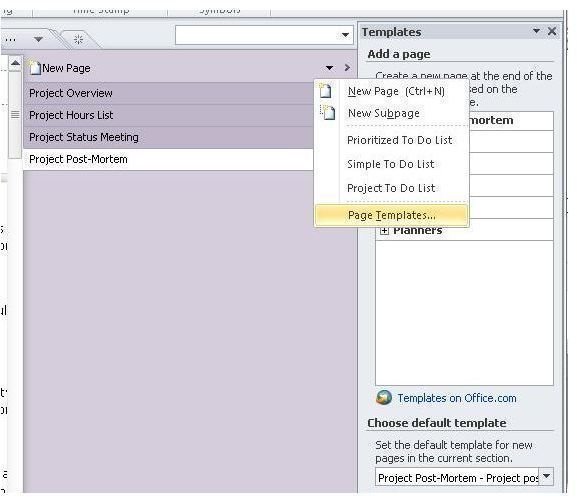
After selecting the post-mortem stationery as the default, a click on the “New Page” tab of a notebook section will insert a new post-mortem page into that section.
Sharing a Project Mangement Notebook
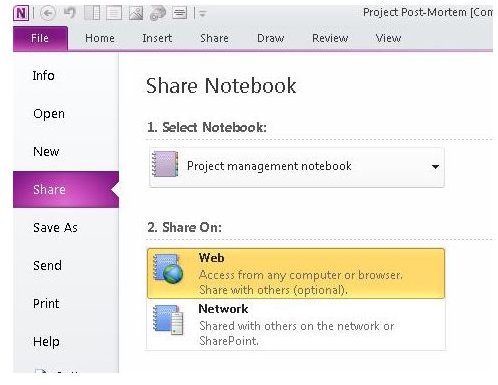
A powerful feature of MS OneNote project management is that the notebooks created to organize the project are shareable over the network. This means that at any given time team members can view, edit, and add information that is relevant to the project in real time, giving workers a key communication and collaborative advantage.
To share a notebook, click the “File” option on the main menu and then click “Share” on the left. Users can choose to share the notebook on the Web (using Windows Live), on a shared local network folder, or on a SharePoint server.
Closing Thoughts
Microsoft OneNote is a powerful software application that helps organize and centralize a wide variety of tasks done on the computer, including project management. The templates listed here are a starting point for developing the MS OneNote project management. Sharing notebooks is a great way to make sure the whole team has access to the latest information about the project. Once OneNote is deployed as a project management tool, life may never be the same again.
Image Credits: Screen shots taken by Bruce Tyson